

Your laptop hits 144 fps plugged in, then drops to 40 fps the moment you unplug it. You are not imagining the slowdown, and your machine is not broken. Learning how to fix gaming laptop low fps on battery comes down to understanding one setting most manufacturers hide: power limits.
Quick answer: Plug into the wall whenever you play seriously, and disable battery-saving throttles in Windows and your GPU control panel. On battery, set the Windows power mode to Best Performance and cap your frame rate to a realistic target. Expect roughly half your plugged-in performance even after tuning, because the battery simply cannot supply the same wattage.
This guide explains why the drop happens, walks through the settings that recover the most frames, and flags the mistakes that waste your time.
What is fix gaming laptop low fps on battery?
The phrase describes a specific problem: frame rates falling sharply once a gaming laptop switches from AC power to its internal battery. The cause is deliberate design, not a defect. A gaming laptop draws between 150 and 250 watts under load, and no built-in battery can deliver that for long.
Manufacturers therefore enforce power limits the moment the adapter disconnects. The GPU drops to a lower power ceiling, the processor reduces its clock speed, and Windows switches to a battery-saver profile. Each limit shaves frames.
It helps to think of the laptop as budgeting watts instead of frames. Every component files a request, and firmware decides who gets served first. When the adapter disappears, the budget shrinks and the requests queue up, so the same game that ran smoothly now waits in line. Fixing the problem means rearranging that queue in your favor.
Why the drop is so steep
On AC power, your GPU might run at 115 watts. On battery, it may be capped at 35 to 60 watts, depending on the model. That reduction alone can halve frame rates in demanding titles. The CPU shares the same squeeze, and the screen often drops its refresh rate to save energy.
Heat matters too. With less power available, the cooling system and the power delivery circuitry behave differently. Some laptops run quieter on battery but hold lower clocks to protect the battery from rapid drain.
What you can and cannot recover
You can recover a meaningful share of performance through software settings. You cannot recover all of it. The battery’s discharge rate is a hard physical ceiling, and the firmware will protect it regardless of your settings. Treat any fix as damage control, not parity.
The biggest frame gains on battery usually come from uncapping the power limit in the manufacturer’s control app, not from Windows settings.
The practical goal is a smoother, more stable experience at a sensible frame rate. That is very achievable.
Why fix gaming laptop low fps on battery matters
A stutter in a competitive match costs you the round. That is the immediate reason this problem matters. You unplug for a quick session, and the same settings that felt responsive now feel sluggish.
There are quieter stakes as well. Running aggressive settings on battery drains it faster, so you get both worse performance and less playtime. A tuned setup often delivers smoother frames and more minutes before the warning appears.
Here is what changes when the throttling is handled well:
- Stable frame pacing: fewer sudden dips matter more than a high average number.
- Longer usable playtime: a sensible frame cap and reduced brightness can stretch a session considerably.
- Lower heat and fan noise: reduced power means the chassis stays cooler on your lap.
- Predictable behavior: you know what to expect in each mode instead of guessing.
The trade-off is honesty about limits. A tuned laptop on battery will never match wall power. Accepting that keeps you from chasing settings that cannot deliver.
Battery life claims from manufacturers are measured under light loads. Gaming drains a laptop battery in roughly one to two hours on most models.
If you play away from an outlet often, this tuning becomes part of your routine rather than a one-off fix. It is worth thirty minutes of setup.
Battery drain also changes the economy of a session. Aggressive settings that pull maximum wattage empty a 90 Wh pack in under an hour, while a capped frame rate and dimmer screen can push the same machine past the two-hour mark. Frame rate and runtime therefore pull in opposite directions, and the right balance depends on whether you are mid-match or mid-flight. Consider the classroom and coffee-shop case too. A laptop that suddenly runs a game at 40 fps after an hour of note-taking is usually in a battery-saver profile nobody chose. Fixing the setup restores consistent behavior across every app, not just games, so the same machine feels responsive whether you are editing slides or playing.
Best practices
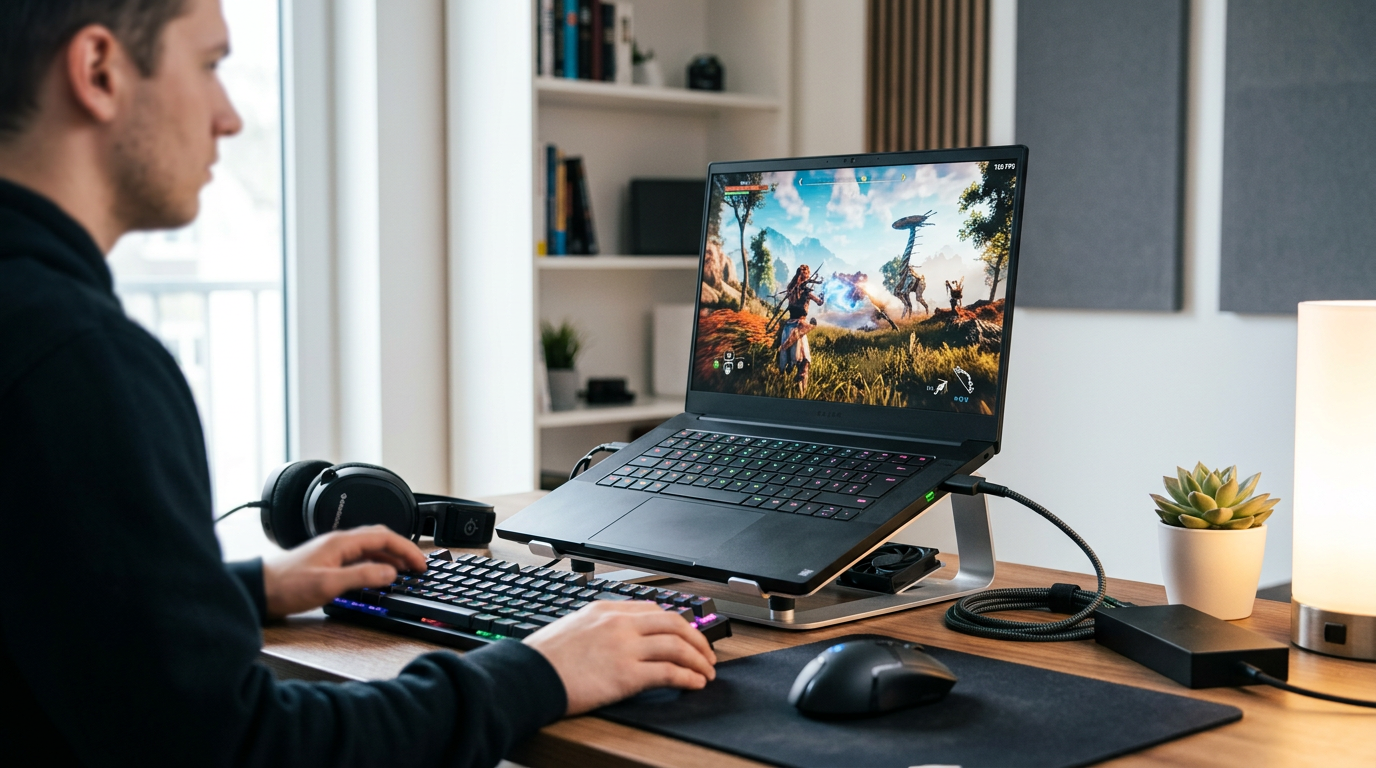
Work through these in order. Each step builds on the last, and the first two deliver most of the gain.
Start by recording a baseline: note your frame rate in one repeatable scene, plugged in and unplugged, before touching anything. After each change, repeat the same test and keep a short written log. Without that record you cannot tell which tweak helped and which merely changed the fan noise.
Match your power profile to your goal
Open Windows Settings, then System, then Power and battery. Set the power mode to Best Performance while unplugged. On many laptops this single change unlocks higher clocks immediately.
Then open your manufacturer’s control app — Armoury Crate, Lenovo Vantage, PredatorSense, or whatever your brand provides. Switch to the performance profile and look for a battery-specific power limit. Raise it if the app allows it.
Cap frames to a realistic target
An uncapped frame rate wastes power chasing numbers the battery cannot sustain. Set a cap in-game or in the GPU driver at 60 fps for most titles, or 30 fps for demanding single-player games.
Where that cap lives depends on your graphics card, since AMD and NVIDIA organize their driver software differently. A comparison of the AMD and NVIDIA control panels helps you find the frame rate and 3D settings without hunting through menus.
A steady 60 fps feels far better than a jumpy 45 to 70. Frame pacing matters more than the peak number on the counter.
Trim the frame cost
Smaller settings changes add up on battery. Try these:
- Lower the resolution to 1080p if you play at 1440p.
- Drop shadows and reflections one notch.
- Disable ray tracing entirely.
- Reduce screen brightness to a comfortable level.
Each of these reduces load, which leaves more headroom for the power-limited GPU.
Keep the driver current
GPU vendors regularly ship driver updates that adjust power behavior. Check for updates every few weeks rather than once a year. A stale driver can leave performance on the table for no good reason.
Manage heat and background load
Place the laptop on a hard, flat surface so the vents can breathe. Close browser tabs, pause cloud sync, and stop background downloads before you play. These processes steal CPU time and battery alike.
Comparison: plugged in vs. tuned battery play
| Factor | Plugged in | Tuned on battery |
|---|---|---|
| Typical frame rate | Full performance | Roughly 50–70% |
| Usable session length | Unlimited | 1–2 hours |
| Fan noise | Higher | Lower |
| Best use case | Competitive play | Casual sessions |
Notice the pattern: battery play is a compromise you manage, not a problem you erase.
Keep a compact 100W USB-C charger in your bag. Many modern gaming laptops accept charge over USB-C and can run in a balanced mode from it.
Common mistakes to avoid
Most failed attempts share the same handful of errors. Avoiding them saves hours of frustration.
Another frequent error is judging performance in the first minute after unplugging. Firmware often waits before clamping down, so a quick test looks fine while a ten-minute session tells the real story. Benchmark for at least several minutes in the same scene and settings. People also forget the display. A 240 Hz panel running at full brightness can consume as much power as a mid-range GPU under light load. Dropping to 120 Hz or lowering brightness sometimes frees more wattage than any driver tweak. And chasing benchmark scores instead of playable frametimes leads you to settings that look good in a chart but stutter in practice.
Expecting full performance from the battery
This is the root mistake. No setting overrides the battery’s discharge limit. If you benchmark before and after, expect a gap and judge your fix against that reality, not against wall power.
Blindly disabling every power feature
Some guides tell you to disable all battery protections and battery saver features at once. That can shorten battery lifespan and cause instability. Change one setting at a time, then test. Keep an eye on your battery health over months, not minutes.
Ignoring the manufacturer app
Windows settings alone often cannot raise a GPU power limit. The vendor app holds that control. Skipping it leaves the biggest lever untouched.
Leaving the refresh rate at its lowest battery setting
Many laptops drop to 60 Hz on battery by default. If your panel supports a higher refresh rate, check whether the control app lets you keep it. Higher refresh rates cost battery, so decide based on whether you need the responsiveness.
Playing on a soft surface
A blanket or cushion blocks the intake vents. The laptop then throttles for heat on top of its power limit, which compounds the slowdown. Hard surfaces only.
Forgetting to re-test after updates
A driver or BIOS update can reset your power profiles. Recheck your settings after any major update.
Avoid third-party tools that claim to remove all power limits. Forcing higher wattage than the battery can supply may cause sudden shutdowns and, in rare cases, damage the power delivery hardware.
FAQ
Can I get the same fps on battery as when plugged in?
No. The battery cannot supply the wattage your GPU needs at full load, and firmware enforces a limit to protect the hardware. You can recover a substantial share of performance through power profiles and frame caps, but a gap of roughly 30 to 50 percent is normal.
Does a higher-wattage charger improve performance?
It can help if your laptop supports it, because the adapter supplies power directly. Check your model’s supported charging standards before buying. A charger below the rated wattage may charge slowly or not keep up during play.
Is it safe to raise the power limit on battery?
Modest increases within the vendor app are generally fine. Pushing beyond the manufacturer’s options is risky. Stick to the profiles the software offers and watch for unexpected shutdowns.
Why does my fps drop even in light games on battery?
Windows and the vendor app apply power savings at the system level, not per game. Even light titles run on reduced clocks. Setting the power mode to Best Performance usually fixes this.
Should I game on battery at all?
For short, casual sessions, yes. For long or competitive play, plug in. Battery play wears the battery faster and limits performance.
Conclusion: fix gaming laptop low fps on battery with realistic expectations
The fix is a short checklist, not a miracle. Set the Windows power mode to Best Performance, raise the limit in your vendor app, cap frames at a sensible target, and keep the vents clear. Together these steps turn a frustrating stutter into smooth, predictable play.
Expect a performance gap and plan around it. Plug in for competitive matches, and save battery play for casual sessions.
Start with your manufacturer’s control app today and test one change at a time. You will quickly learn what your laptop can realistically deliver unplugged.


